
Inbox & insights
Read every conversation, take over live, and turn chats into structured data.
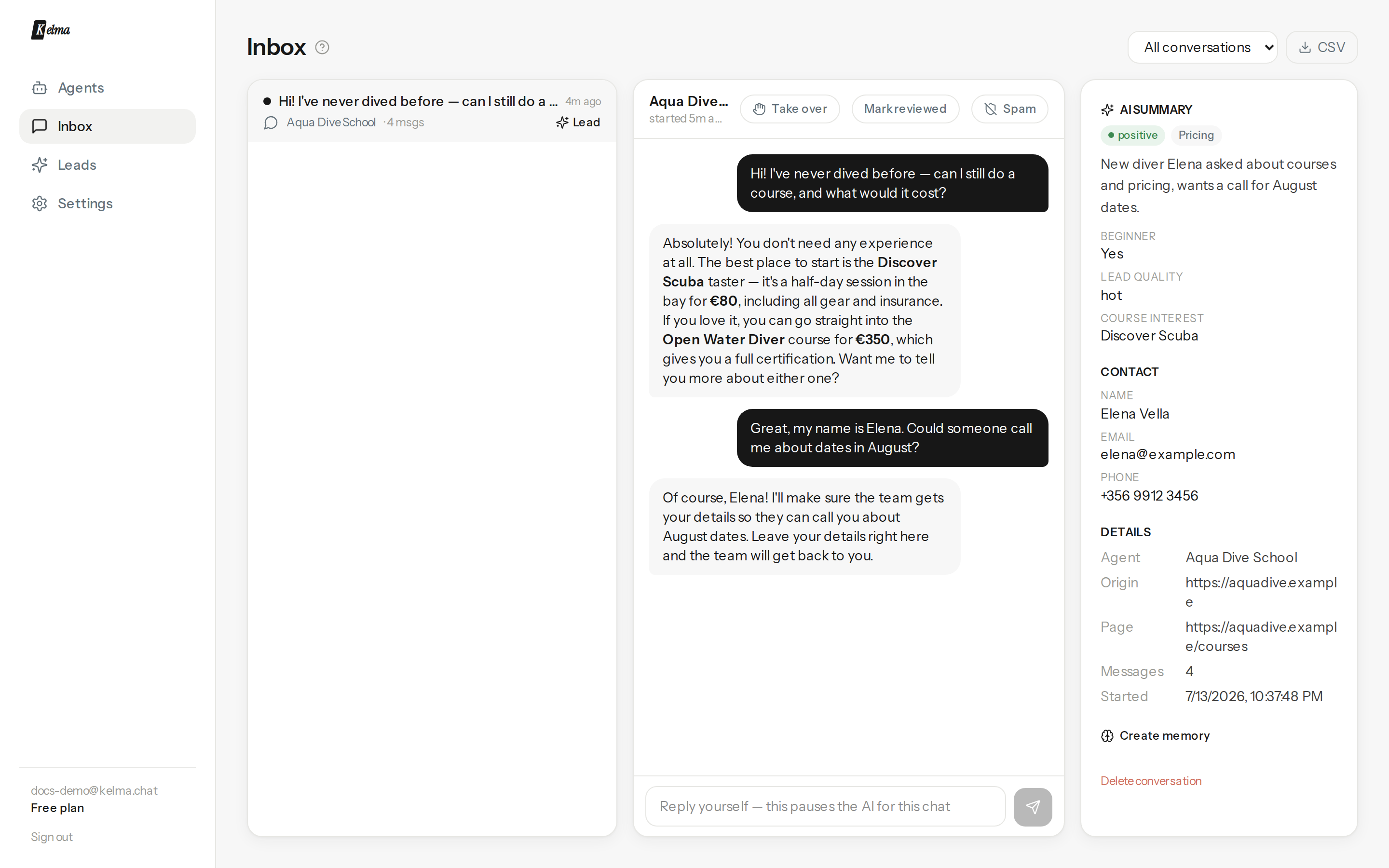
The Inbox shows every conversation across your agents in three panes: the list, the transcript, and the details.
Working the list — solo or as a team
Filter by agent or status (New, Reviewed, Spam). New conversations carry a dot; mark them reviewed as you go. On a paid plan you can invite teammates (Settings → Team) to work the inbox alongside you — they sign in with their own email and share your agents, inbox, leads and analytics; see Plans & billing. Spam silences the agent for that thread — the visitor can keep typing but gets no more AI replies — and hides it from the default view. Everything is reversible.
Team roles
Each teammate has a role, set when you invite them (Settings → Team) and changeable any time:
- Admin — full access: manage agents, sources and integrations, plus the inbox, leads and analytics. Billing and team management stay with you, the owner.
- Agent — the front-line seat: works the Inbox, Leads and Insights, and sees your agents as a read-only list (no editing, no Settings). Perfect for support staff who answer chats but shouldn't change how the agent is built.
Scope a teammate to specific bots. By default a teammate sees every agent in the workspace. On the Team card, open a member's bot picker to limit them to certain agents — they'll then only see those bots' conversations, leads and analytics (and, for admins, only those are editable). Ideal when different people own different products or brands. It applies everywhere: inbox, leads, analytics and the agents list are all filtered to their set.
Take over from the AI
Type in the reply box and send: the AI pauses for that conversation and the visitor sees your message appear live, under your name (set your display name from the account menu). Press Join chat first to announce yourself before typing — or just reply, which announces you too. Press Hand back to AI when you're done. (An urgent-handoff request from the visitor pauses the AI automatically and pings your alerts.)
Assign conversations
With a team, each conversation can be assigned to a specific person so nothing gets double-handled or dropped. Use the assignee dropdown in the conversation header to hand it to a teammate — and replying to a visitor auto-assigns it to you if nobody's claimed it, so an active chat shows as yours. Filter the list by Assigned to me, Unassigned, or a specific teammate to focus on your own queue. (Assignment is invisible until you've invited someone — a solo workspace stays clutter-free.)
Presence, capacity & the live queue
For teams handling live chats, set your availability from the pill at the top of the inbox — Online, Away or Offline — and your max live chats (how many you'll handle at once). While you're online, the inbox keeps you reachable with a quiet heartbeat.
When the agent hands a visitor to a human, it routes intelligently:
- Someone free → the chat is auto-assigned to the least-busy available teammate, and the visitor is told they're being connected.
- Everyone at capacity → the visitor joins a queue and is told their position; the moment someone frees up (hands a chat back or closes one), the longest-waiting visitor is pulled through to them automatically.
- Nobody online → the agent falls back to taking the visitor's details for follow-up (or a callback), exactly as it does outside your team's hours.
The availability pill also shows the team roster (who's online and their load) and a queue badge when visitors are waiting — so a supervisor can see at a glance when to bring more agents on. Solo? The pill matters just as much: going Online is what lets the agent offer to bring you into a chat live — while you're Offline (or outside team hours) it offers a callback or ticket instead of promising a person.
Macros — saved replies
Answering the same thing over and over? Save it once as a macro and insert it in a keystroke. In the reply box, click the ⚡ button or just type / to open the macro picker — search, pick, and it drops into your reply. Macros are shared across your whole team and organised by category, and they carry {{variables}} — write Hi {{name}}, your order {{order_id}} is on its way and the visitor's captured details fill in automatically when you insert it (a missing value is left visible so you notice). Create, edit and delete them right from the picker — turning a recurring answer into a reusable one never means leaving the conversation.
AI summary & custom extraction
Each conversation gets a sentiment, an intent, and a one-line summary. Add your own extraction fields on the agent's General tab — e.g. Lead quality: hot / warm / cold, Demo requested: yes/no, Budget: number — and the AI fills them for every conversation. They show in the details pane and in exports.
Teach from a conversation
Spot a reply you'd phrase differently? Create memory in the details pane — see Memories.
Export
The CSV button downloads all conversations with their analysis (including your custom fields) for spreadsheets or BI. Leads have their own export on the Leads page.